
Keep layouts flexible with Stacks and layout templates
Use flexible sizing for content and shared page structures for navigation and footers, then stress-test longer copy.
Soidesmax · 4 min read · Updated 2026-10-20
Build a page that survives editing
This lesson tackles two different jobs: arranging content inside a section, and sharing a page structure across your website. Use Stacks for the first job and consider Layout Templates for the second. They are related tools, not interchangeable names.
For North Studio, create an About page with a heading, introduction and three service cards. Reuse your existing navigation and footer instead of recreating them with slightly different spacing.
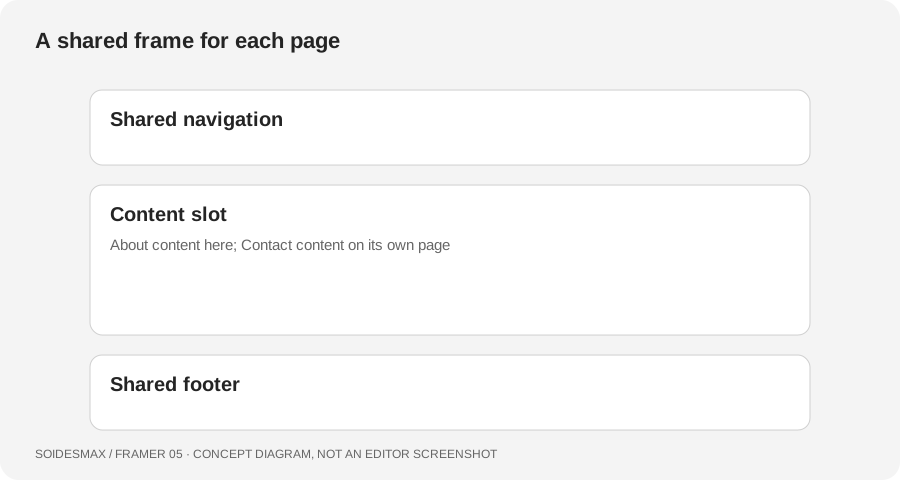
Original layout-template diagram.
1. Arrange a section with a Stack
Select the section's parent frame and inspect its layout controls. Arrange the heading, paragraph and button vertically. Use Gap for the distance between neighboring children and Padding for the space inside the parent boundary. This makes adding another paragraph much safer than manually repositioning everything below it.
Inspect each child's width and height. For this exercise, allow text to grow with its content and use flexible width inside a bounded reading area. A fixed height can clip a longer paragraph. Absolute positioning can be appropriate for deliberate overlays, but it should not be your first solution for ordinary flowing copy.
2. Stress-test before duplicating
Replace a one-line service title with a two-line title. Add a paragraph. Narrow the page. If the next card overlaps, inspect the parents and fixed heights instead of adding arbitrary empty spacers. Once the section behaves well, reuse it.
Suggested practice values are a 24-pixel gap and 24-pixel inner padding. These are learning choices, not required Framer settings. Judge the result with your actual font and content.
3. Create a shared page layout
Current Framer documentation places Layout Templates on a selected page's Template controls. Select the page in Pages, use the plus next to Template in the properties panel, name the layout and create it. A template created from Home may be applied automatically to compatible pages, so inspect your other pages immediately.
Layout Templates require compatible vertical Stack page structures. If a page cannot use the layout, check its structure before assuming the feature is broken.
4. Protect the content slot
The content slot holds the page-specific material. Place shared navigation and footer outside that slot; keep About's introduction inside it. Apply the layout to another compatible page using its Template layout selection. Then make a harmless shared footer edit and verify both pages, confirming that their unique content stays different.
Open the layout from Assets when you need to work on its shared structure. Review its smaller breakpoints too. Shared navigation must still fit on phone widths; a well-tested desktop layout does not automatically prove the mobile layout is ready.
Troubleshooting
- About text appears on every page: it may be outside the content slot.
- Only one page's footer changes: it may be an independent copy instead of the shared layout.
- A long paragraph overlaps content: look for fixed heights and out-of-flow children.
- A page is incompatible: check the vertical Stack requirement.
Completion check
Add a paragraph to About and confirm that the footer moves naturally. Edit shared navigation and verify another page. Test both pages on a narrow viewport before continuing.